¶ Hytale: How to Install Mods
¶ Introduction
Modding Hytale is designed to be simple, easy, and painless for server owners. While most games require you to share your modpacks with all players through complex and tedious .zip files or other methods to stay up to date, Hytale is ahead of the game: servers do not require players to manually download any files at all.
In fact, all your players need to do is connect to your server via the Hytale launcher as usual, and Hytale will handle the rest. The only thing you need to do is obtain your mods and set them up server-side. There is no need for your players to manually download any mods.
In this guide, we'll teach you how.
P.S. In the future, indifferent broccoli will be releasing our own Curseforge installer with automated mod updates…
So managing your Hytale server will be even easier. Cool, huh? The game is still pretty new, so give us a bit. We're working on it.
¶ Method 1: Manual
¶ Steps:
1. First and foremost, you'll need to get some mods. Right now, the go-to source for Hytale mods?
Of course: our tried, trusted, and true: Curseforge.
So hop on over there and either download your chosen mod files manually or
via the Curseforge App (dealer’s choice), then move on to step 2.
2. So you've got your cool mods. Depending on how you downloaded them, there are two ways to proceed. If you downloaded the files directly from Curseforge, they'll be in your Downloads folder. If you downloaded them via the Curseforge App, then follow the images below to locate your mods folder.
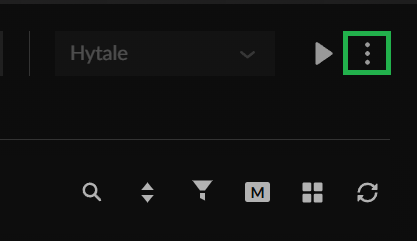
In the My Mods section of the Curseforge App, look in the upper right corner of the interface and find the three dots: click them to open the menu.
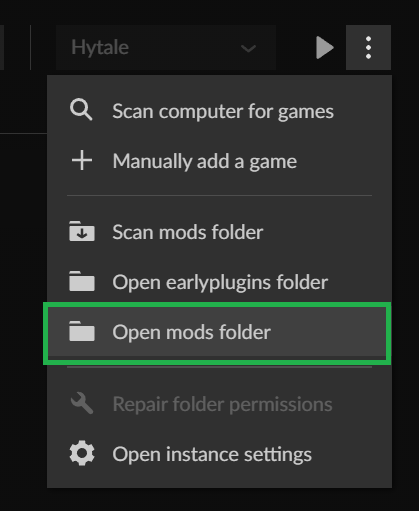
Here, you'll see a few options, find the Open mods folder and click it. Now you should be in your Hytale\UserData\Mods folder and see all your mods. Now you're good to move onto the next step. Almost there.
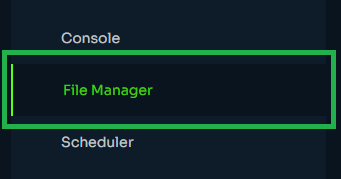
3. Now that you have your Mods folder open, go to your dashboard’s file manager via the navigation interface and click it.
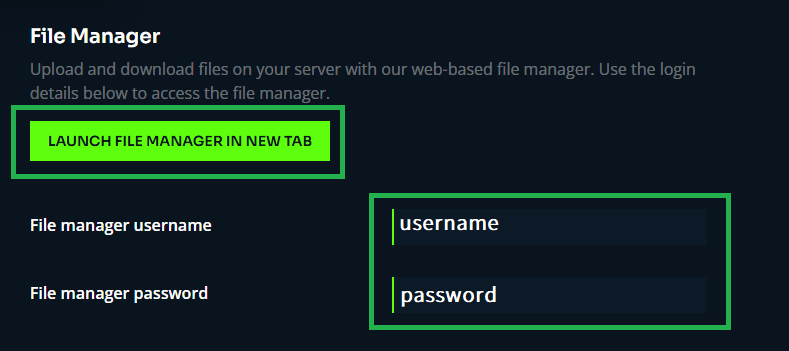
On the new page, click the Launch File Manager in New Tab button. Take note of your file manager’s listed username and password below. Your file manager login is not the same as your account username and password: each server has a unique file manager login.
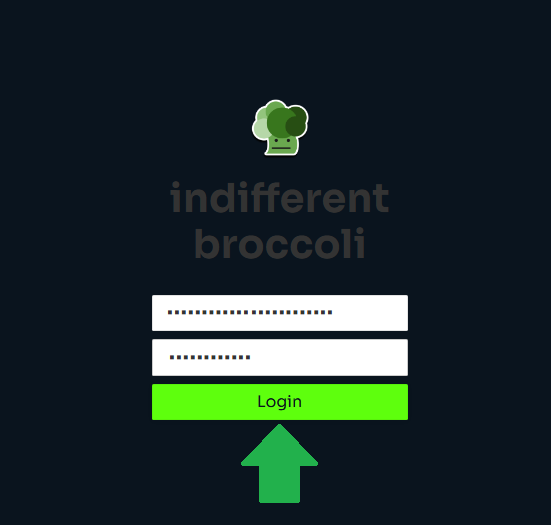
In the new tab that opens, enter your username and password, then click Login.
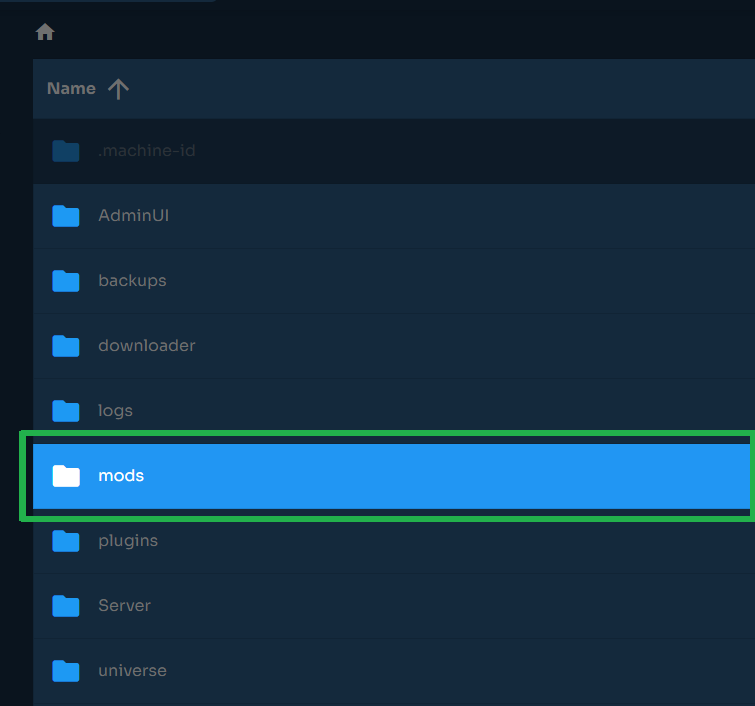
4. You’ll now be in your file manager. From here, simply locate the Mods folder and open it.
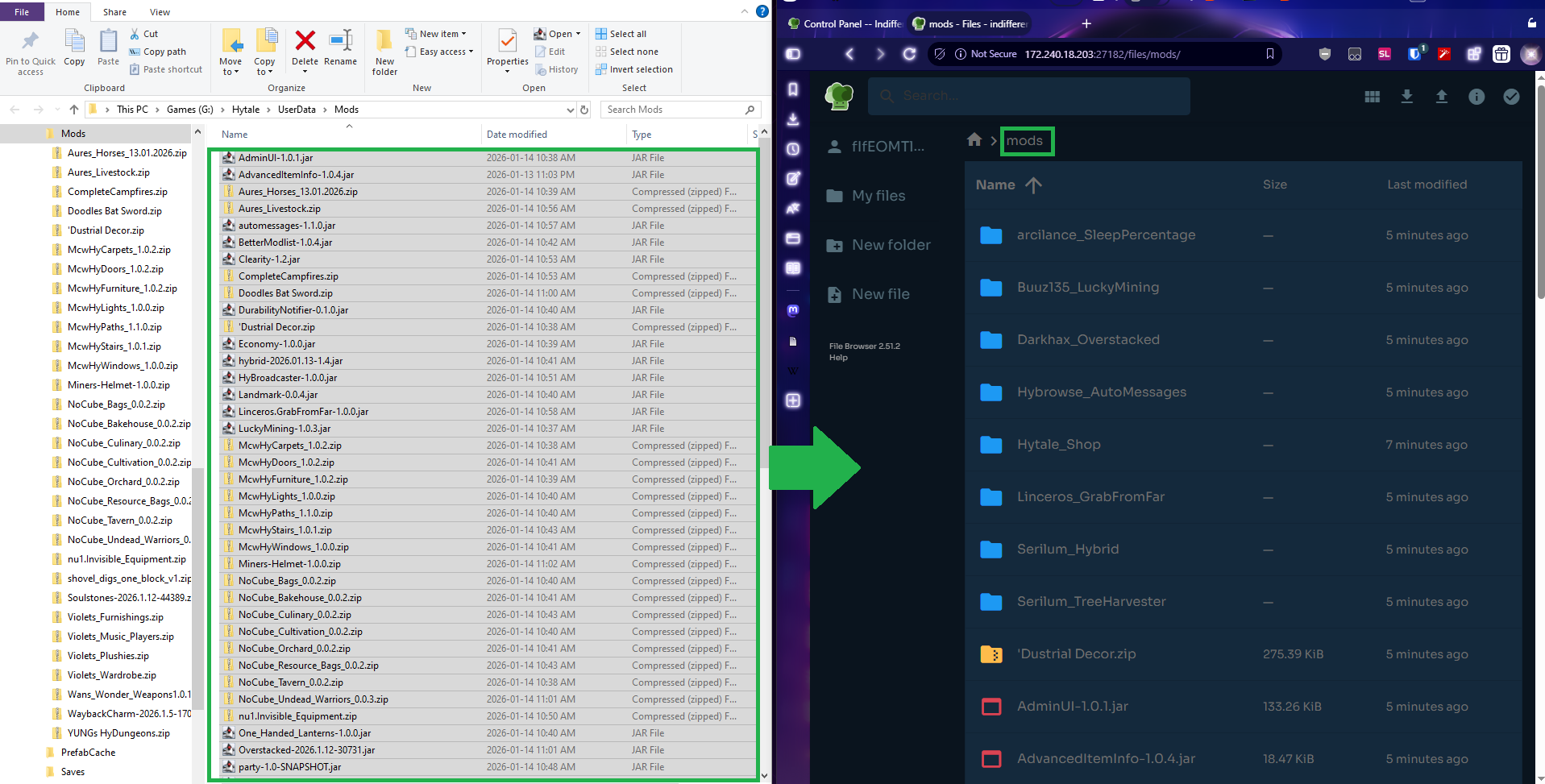
Then drag and drop files from your Hytale Mods folder (or your Downloads folder) into your server’s Mods folder. Then move on to the last step.
5. Finish line. Now, go back to your dashboard. Head over to Server Management in your navigation.

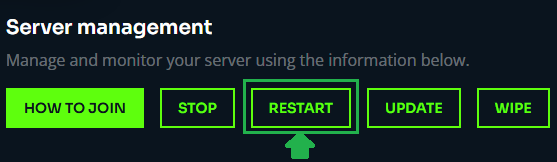
On the page that opens, hit the Restart button.
6. …Huh? Why are you still here? There is no step 6. That’s it. You’re done. Go play your game.
What? Client side? Nope. None of that here. Hytale supports server-side mods only. No need to hand out .zips, modpacks, nothing.
Now get outta here. You’re all done. Enjoy. Or don’t. Whatever works for you. (:|)