¶ Hytale: How to Upload a World
So you’d like to upload your local Hytale save onto your server so you can continue your adventure in your current world? No problem. Just follow these steps, and you’ll have your local save on your indifferent broccoli server in no time.
¶ Steps:
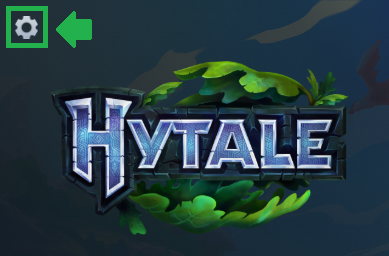
1. First and foremost, you’ll need to locate and obtain the local save you want to upload. The easiest way to get to your Hytale save directory is to use the launcher settings. Open the Hytale launcher, locate the gear icon in the upper left, and click it.
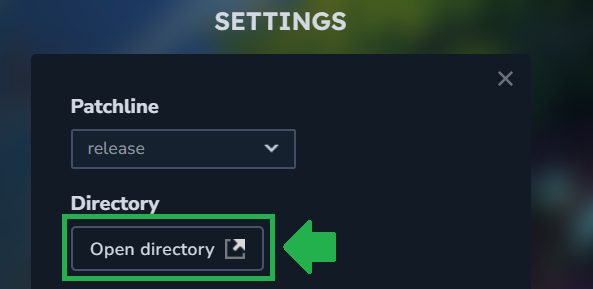
2. Once you’re in the settings menu of your Hytale launcher, you’ll see several options. You’ll want to click on the one that says directory to open your local Hytale folders.
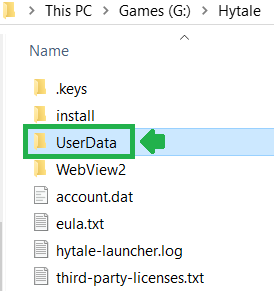
3. You should now be in This PC/Your Drive/Hytale, locate the UserData folder, and open it.
4. Next, once you’re within Your Drive/Hytale/UserData, find your Saves folder.
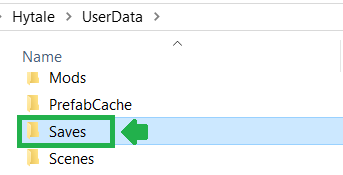
5. Here is where you’ll find your various local game saves (if you have more than one). In this tutorial, for simplicity’s sake, we only have one save: Broccoli. Though you may have more than one save here. Open the one you want to upload to access the actual world save inside.
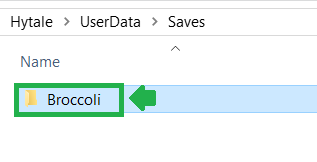
6. Now you should be in Hytale/UserData/Saves/YourSaveName. For this example, ours is Broccoli. Locate the universe folder.
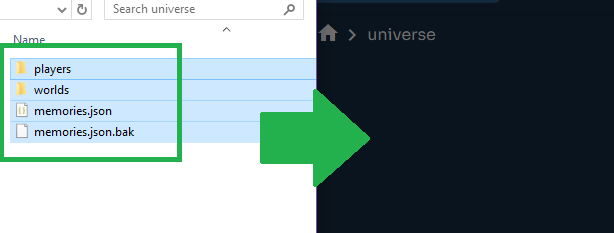
Open it, and you should see several files:
• players
• worlds
• memories.json
• memories.json.bak
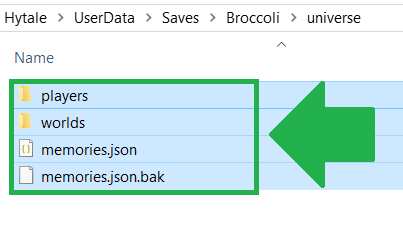
This is where the actual world save data resides. Keep this folder open: we’ll now get the server ready to receive these files.
7. On your indifferent broccoli dashboard, in the navigation interface, go to Server Management and press the Stop button.

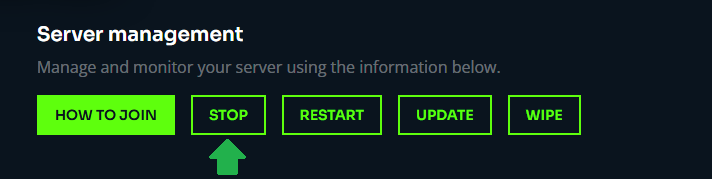
Wait a couple of minutes for the server to fully stop, then proceed to step 8.
8. Still in your dashboard navigation, locate the File Manager and open the page.
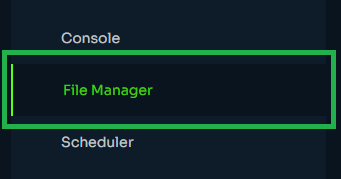
Take note of your username and password. Your file manager login information is unique to each server and separate from your main account credentials for security purposes.
On that page, click the Launch File Manager button.
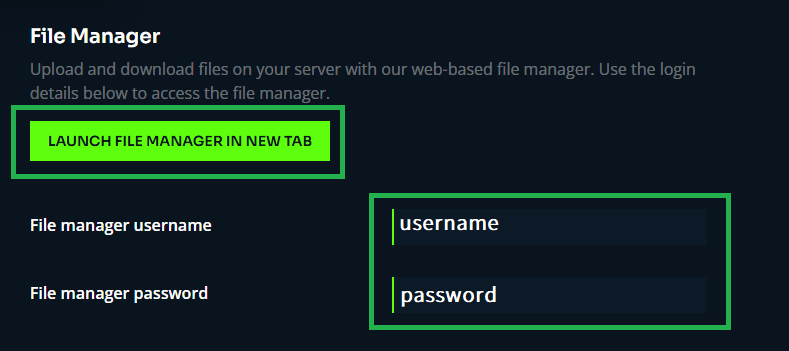
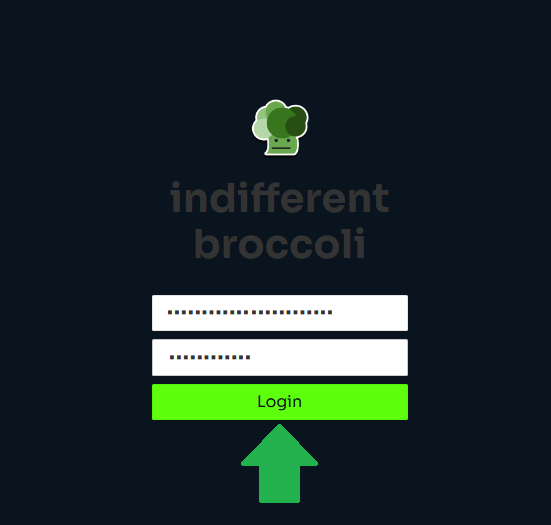
In the new tab that opens, enter the username and password from the previous page,
and log in to your server's file manager.
9. Once inside the file manager, locate the universe folder and open it.
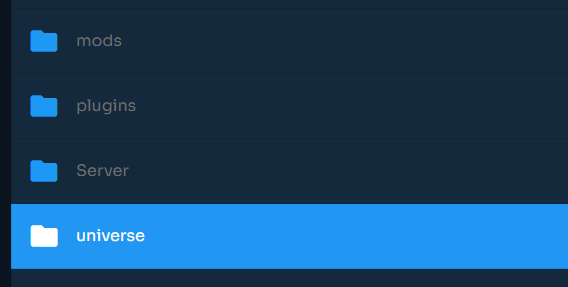
Press Ctrl + A to highlight all files within it, then go to the upper right corner and click Delete to prepare your server with a clean slate.
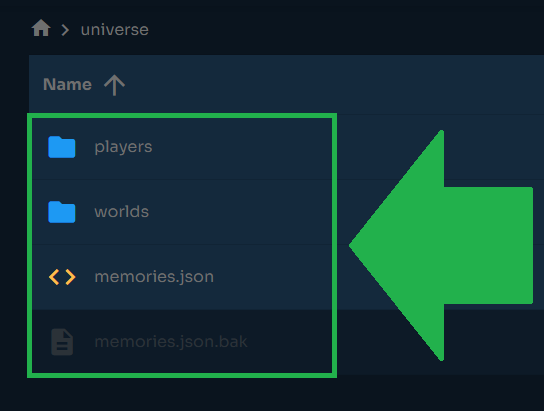

10. Drag and drop the files from your local universe folder into the now-empty universe folder in your indifferent broccoli Hytale server's file manager.
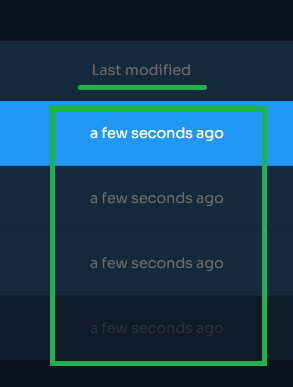
You should now see your uploaded files, with the Last Modified data indicating a few seconds ago. You can now move on to the final step.
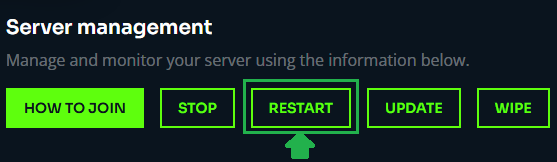
11. Return to your indifferent broccoli dashboard, and in Server Management, click Restart on your server.
When you next log in to your server, your local save should be loaded. Neat. (:|)