¶ Icarus: How to Upload Your Save to a Dedicated Server
If you've been playing locally and want to continue your progress on a dedicated server, this guide will walk you through transferring your save data via FTP.
¶ Step 1: Stop the Server
1. Stop the dedicated server before making any changes.
¶ Step 2: Find Your Local Save Folder
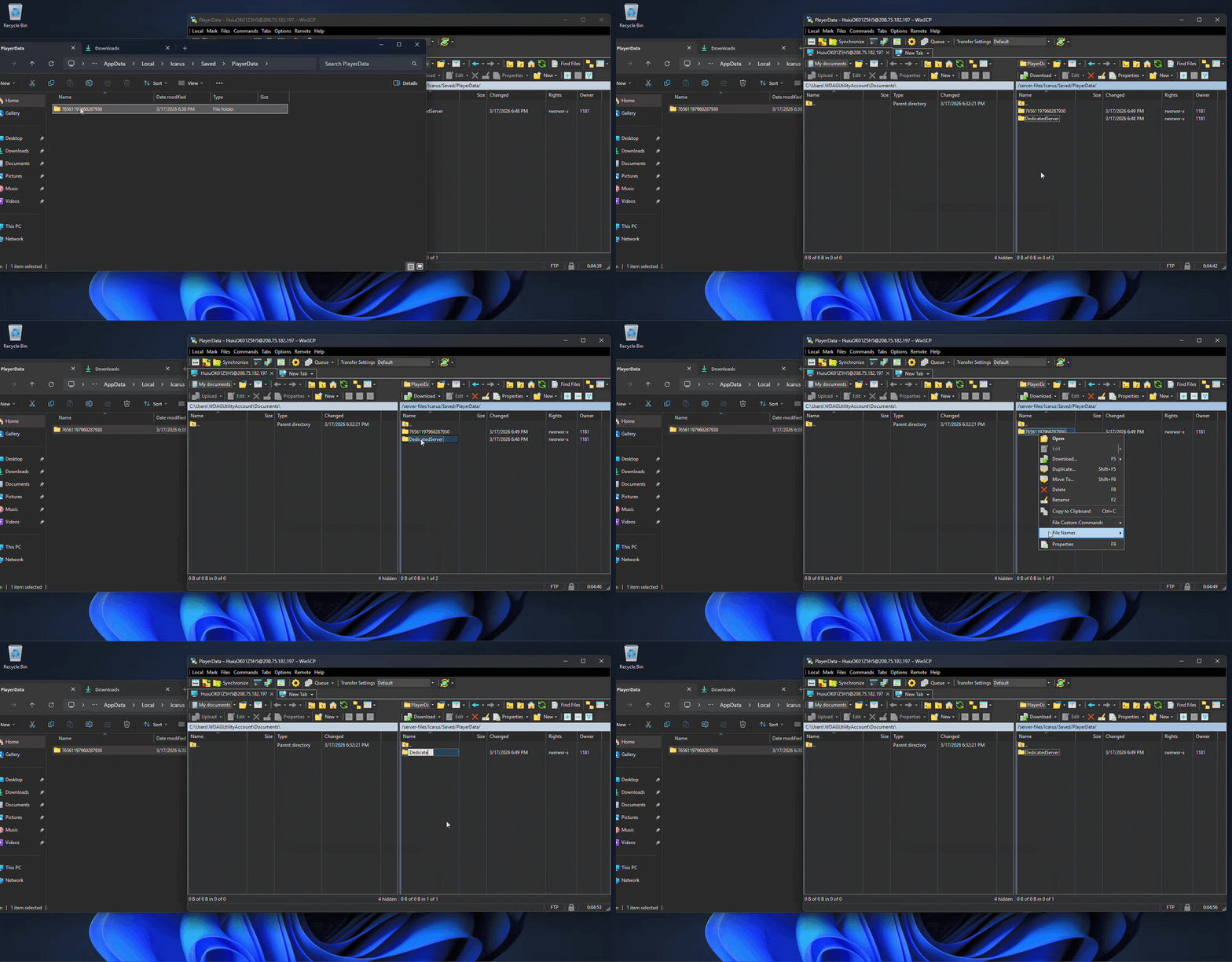
1. On your PC, navigate to C:\Users\<YourUsername>\AppData\Local\Icarus\Saved\PlayerData\
Note:
AppDatais a hidden folder. Use CTRL+R and type %appdata% to see your roaming folder - or in Windows Explorer, go to View → Show → Hidden Items to make it visible.
2. Inside PlayerData, you will see a folder named after your Steam ID (a long number). This is your save data.

¶ Step 3: Upload Your Save via FTP
1. Connect to your server via FTP using a client such as FileZilla or WinSCP.
2. Navigate to the following directory on your server: Icarus/Saved/PlayerData/
3. Upload your entire Steam ID folder into the PlayerData/ directory.
4. Once uploaded, rename the folder from your Steam ID number to DedicatedServer.
Note: If a
DedicatedServerfolder already exists, replace it with your uploaded folder.
¶ Step 4: Load a Specific Prospect (Optional)
By default the server will resume the last prospect it ran. If you want to load a specific Prospect on startup, follow these steps.
1. Via FTP, navigate to Icarus/Saved/Config/WindowsServer/ and open ServerSettings.ini.
2. Find the LoadProspect= line and enter the name of your Prospect file without the .json extension.
LoadProspect=YourProspectName
3. Save the file.
Note: The Prospect file must exist in
Icarus/Saved/PlayerData/DedicatedServer/Prospects/on the server. The name is case-sensitive.
¶ Step 5: Restart the Server
1. Start the server back up. Your prospects and characters should now be available in-game.