¶ Palworld: UE4SS Mod Setup
UE4SS unlocks a whole new tier of Palworld modding, but it's not plug-and-play.
Here's the step-by-step to get your mod loader (and mods) running.
Please note, to give yourself the best experience;
- Read every mod's installation instructions thoroughly
- Check any included readme files in mod downloads
- Pay close attention to load order inside your mods.txt file
- Ensure any mods required on both client and server are installed in both locations
¶ Step 1: UE4SS Installation
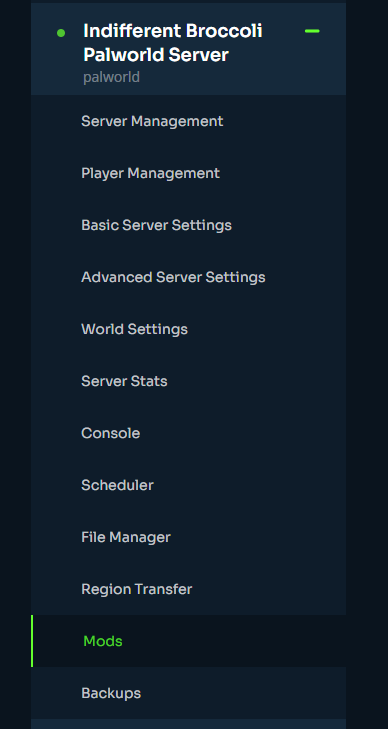
1. On your indifferent broccoli Palworld server dashboard, head over to the Mods tab.
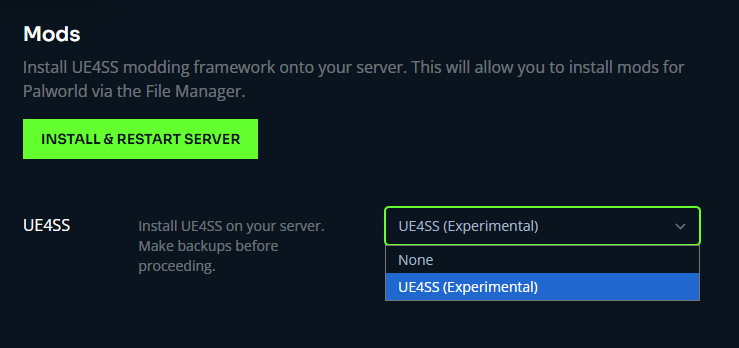
2. In the dropdown for ‘UE4SS’ change it from ‘None’ to ‘UE4SS (Experimental)’
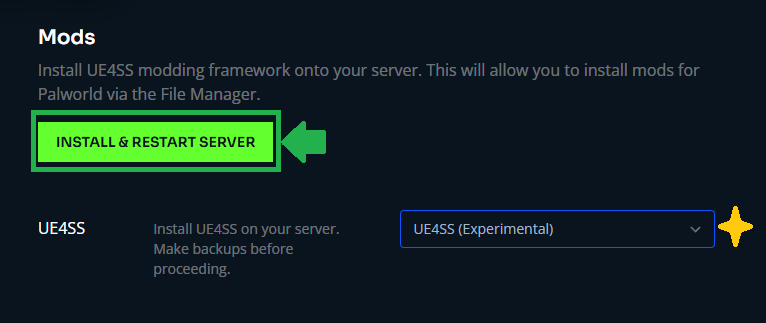
3. Click the ‘Install & Restart Server’ button.
¶ Step 2: Client Side
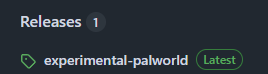
1. Download Okaetsu's UE4SS Experimental Palworld Build.
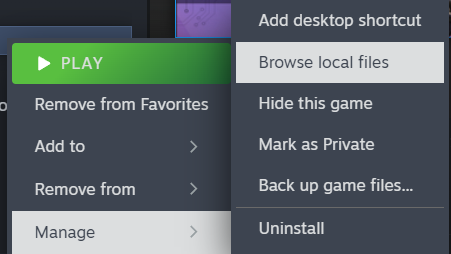
2. Open Steam, and right click your Palworld game. Select ‘Manage’, then ‘Browse Local Files’
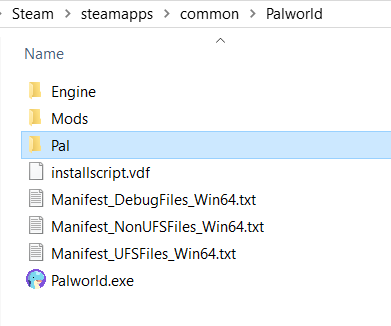
3. Once within Steam/steamapps/common/Palworld select the ‘Pal’ folder.
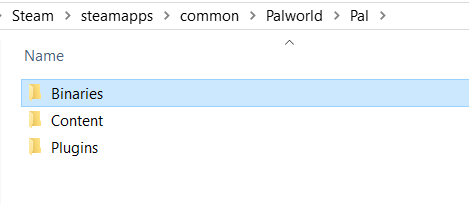
4. Once within Steam/steamapps/common/Palworld/Pal select the ‘Binaries’ folder.
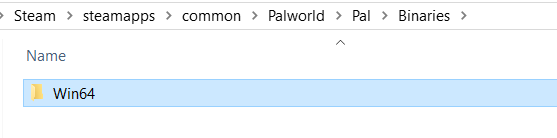
5. Once within Steam/steamapps/common/Palworld/Pal/Binaries select the ‘Win64’ folder.
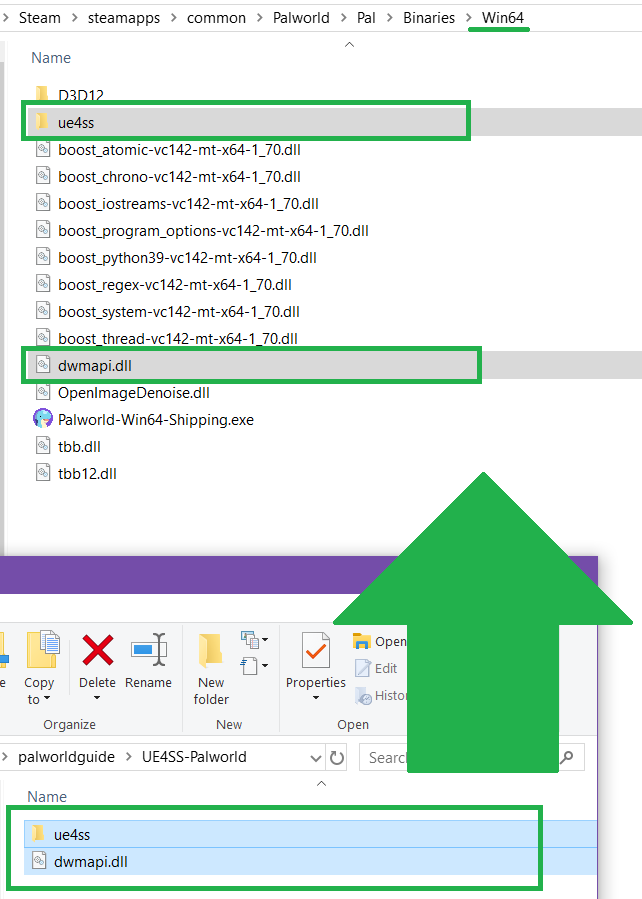
6. From the downloaded and extracted ‘UE4SS-Palworld’ folder, copy the ‘ue4ss’ folder, and the ‘dwmapi.dll’ to the Steam/steamapps/common/Palworld/Pal/Binaries/Win64 directory.
¶ Step 3: Installing Mods
1. Go to NexusMods and find some mods you'd like to use. Ensure they are for the right version and check if they have any specific instructions. If they are non-compatible with Proton or Wine, they will not work on our servers.
2. On client side, head to Steam/steamapps/common/Palworld/Pal/Binaries/Win64/ue4ss/Mods
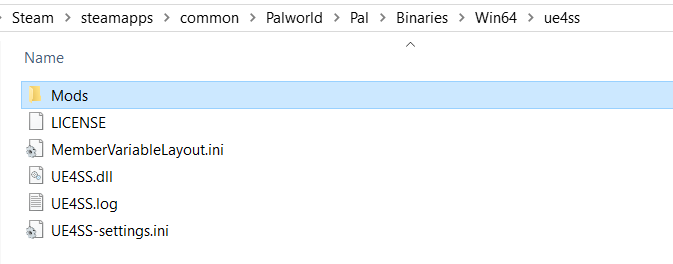
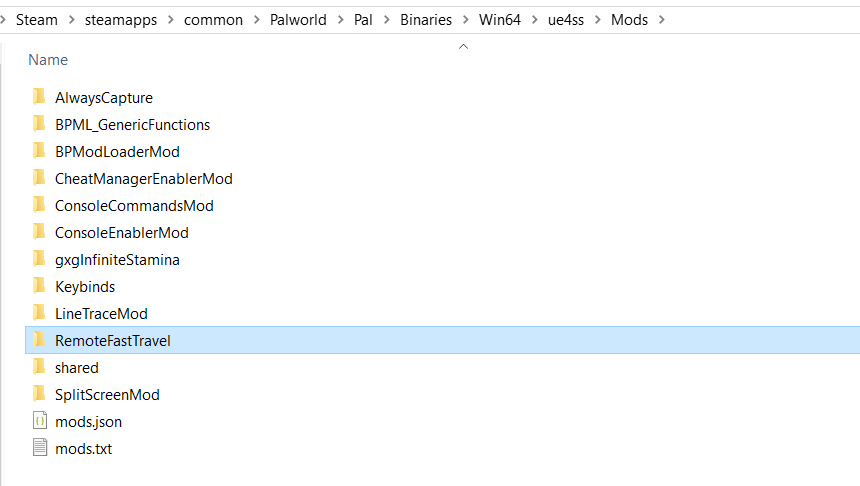
3. Place the unzipped folder of the mod inside the directory. Like so.
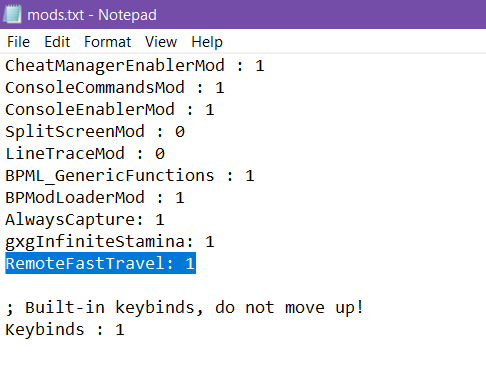
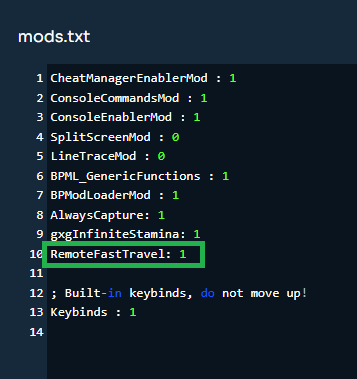
4. In mods.txt, ensure you make an entry for the mod containing the folder name with a : 1 at the end of it. For this example, we are using the ‘RemoteFastTravel’ mod. Which would be entered as RemoteFastTravel: 1
5. On Server Side, in your indifferent broccoli Palworld dashboard's File Manager head to Home/Pal/Binaries/Win64/ue4ss/Mods
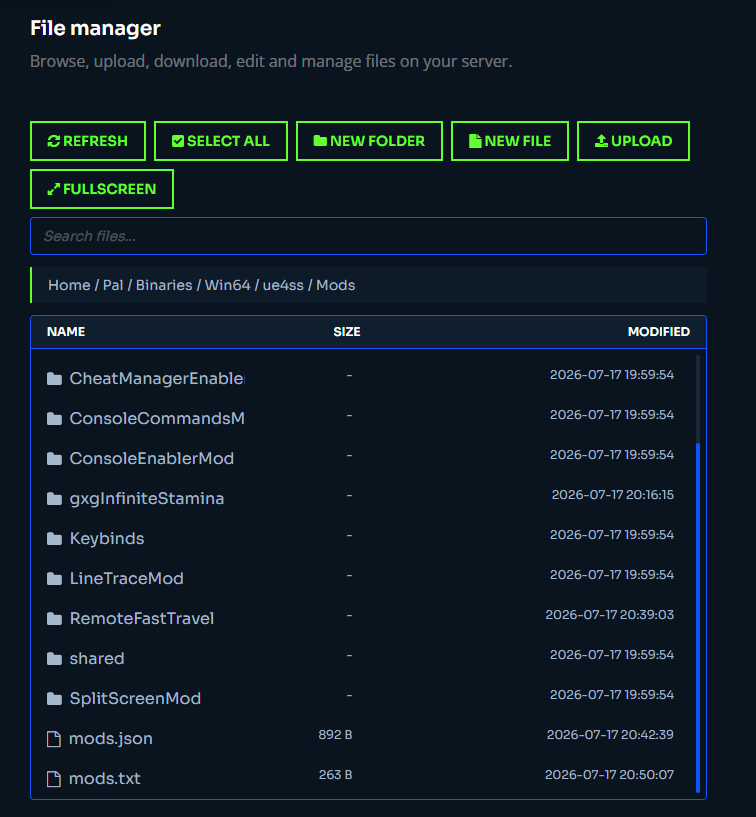
6. In the File Manager go to ‘Upload Folder’.
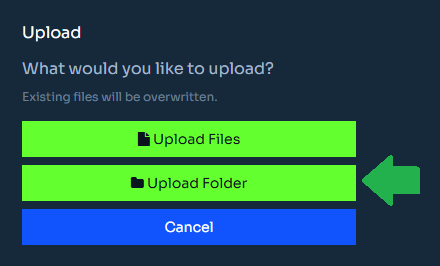
7. On Client Side, navigate to the prior directory; Steam/steamapps/common/Palworld/Pal/Binaries/Win64/ue4ss/Mods and pick the mod you want to upload. One folder at a time.
8. Back on Server Side, in your indifferent broccoli Palworld dashboard's File Manager in Home/Pal/Binaries/Win64/ue4ss/Mods and locate the 'mods.txt' and ensure it has the same entry you made Client Side. You'd want it again containing the folder name with a : 1 at the end of it. For this example, we are using the ‘RemoteFastTravel’ mod. Which would be entered as RemoteFastTravel: 1

Step 4: Finish
You're all set. Enjoy.
You can also use .pak mods alongside ue4ss mods.
If you'd like to learn how to use those, we have a handy guide for those too.