¶ sortof: How to Sort Your Project Zomboid Mods
You've got a stack of workshop mods for your dedicated server. One needs Hydrocraft's shared library loaded before it. One breaks if it loads after True Actions instead of before. Half the mod pages have a "load order" note buried in the description, and the other half don't bother.
You could work all of that out by hand, open every mod.info, trace every require, and paste the result into your server's .ini in whatever order you hope is right.
Or you paste the workshop IDs into sortof and it does the tracing for you.
…Paste them somewhere sortof can actually see them, though. That's what this page is for. (:|)
Read this first: sortof takes workshop IDs, not mod names. The number at the end of a Steam Workshop URL (
steamcommunity.com/sharedfiles/filedetails/?id=2169435993), or the whole collection URL if you're running a modpack. Mod names, folder names, andmod.infoIDs won't match anything.
Note: pick your build, B41 or B42, before you paste anything. Sortof uses it to flag mods tagged for the wrong build and to pull the correct variant for mods that ship both. If your dedicated server runs the unstable branch, that's B42.
¶ Sorting Your Mods
1. Go to sortof.indifferentketchup.com.
2. Pick your build, B41 or B42, top left.
3. Paste your workshop IDs into the workshop ids or collection url box. Semicolons, commas, or one per line all work, and a collection URL expands into its member IDs on its own.
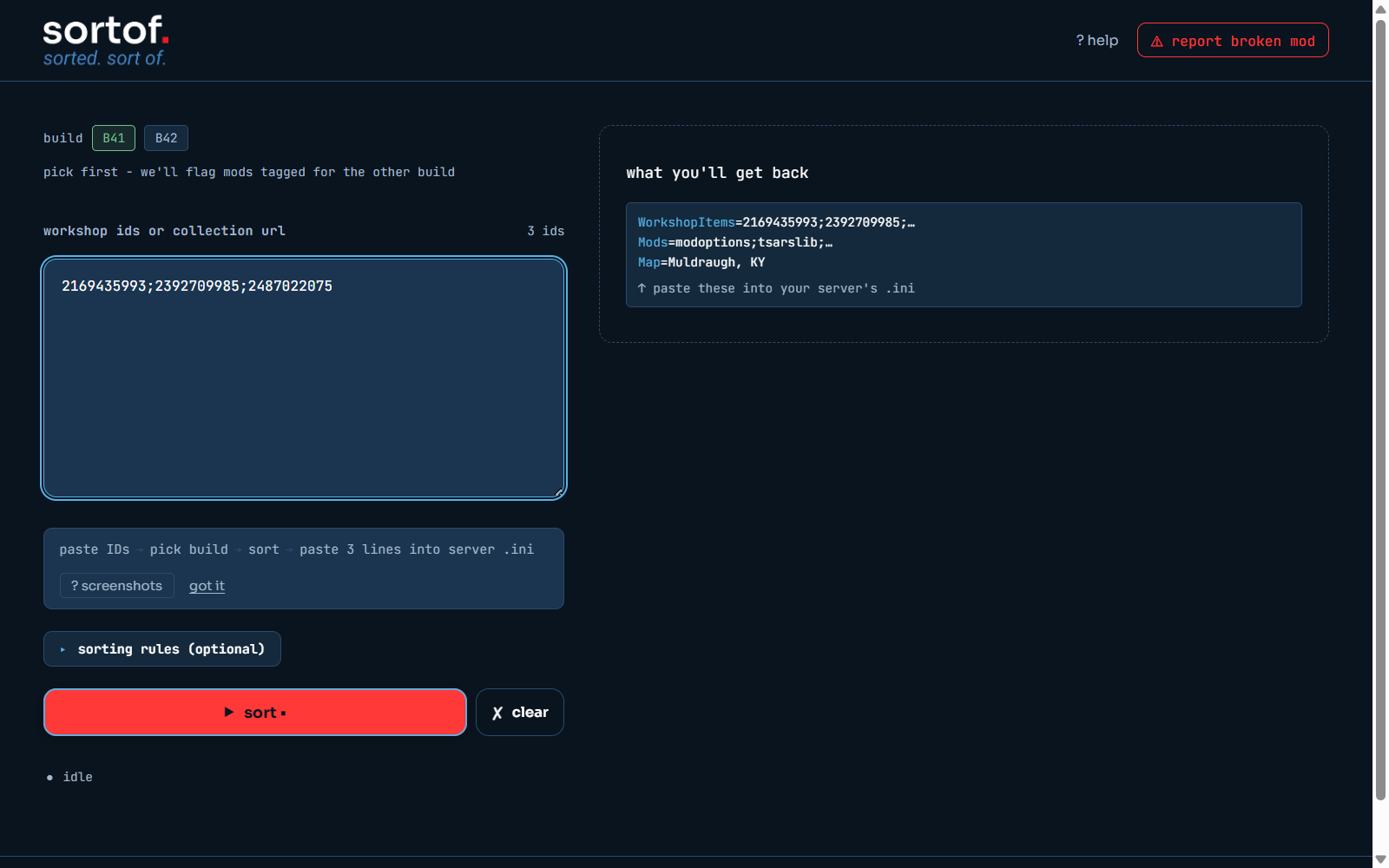
4. Click sort. Mods sortof already has cached resolve instantly. Anything new gets queued in the background, the status strip switches to queued, and it finishes on its own, usually within a couple minutes.
5. You get back three lines: WorkshopItems=, Mods=, and Map=, each with its own copy button.
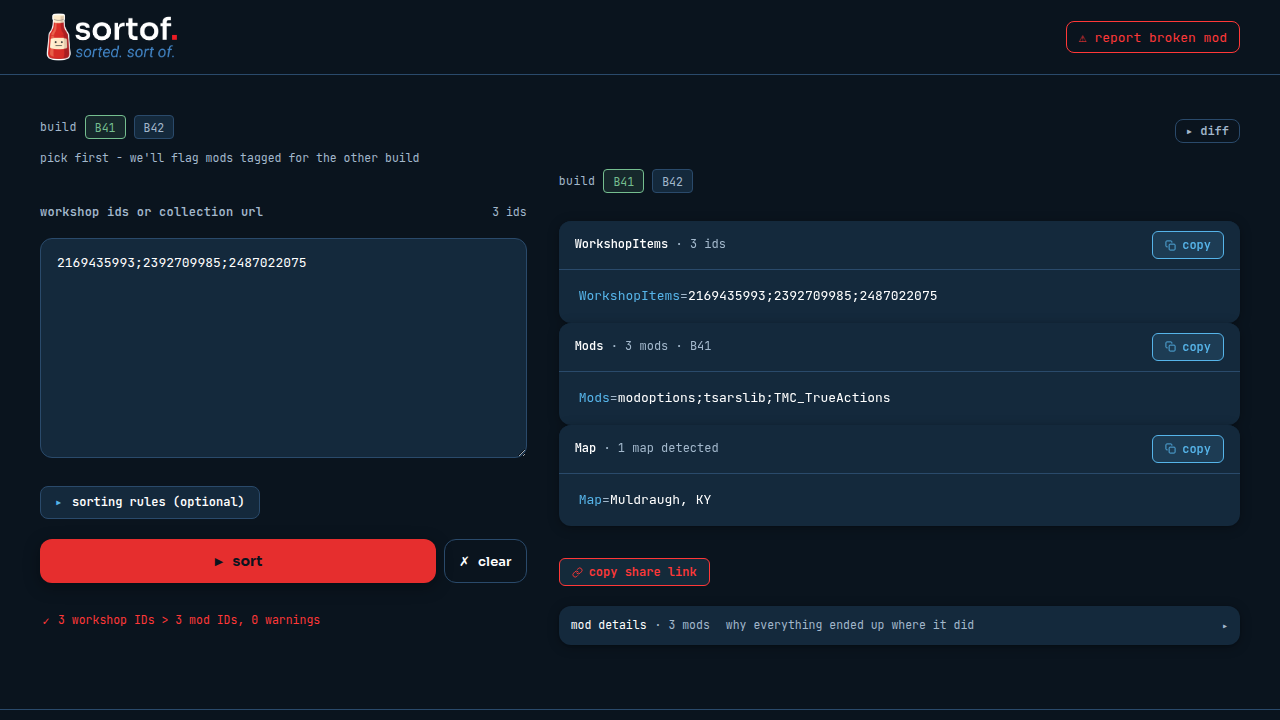
6. Paste all three lines into your dedicated server's .ini, in that order, and restart the server.
¶ Rules and Overrides (Optional)
1. If you already know two mods need a specific order, open sorting rules below the input box and write it in. Sortof folds it into the sort instead of guessing.
2. If sortof flags a warning, expand it. It'll tell you what's wrong and often gives you a one-click fix, like adding a missing dependency or picking between two versions of the same mod.
3. Want to know why a specific mod landed where it did, or whether anything from your input got dropped? Open mod details or diff in the result panel. Both explain the sort, mod by mod, without you having to re-derive it.
¶ What Each Warning Means
Sortof sorts every warning it raises into the same four buckets you'll see counted at the top of the warnings panel. Here's what lands in each one.
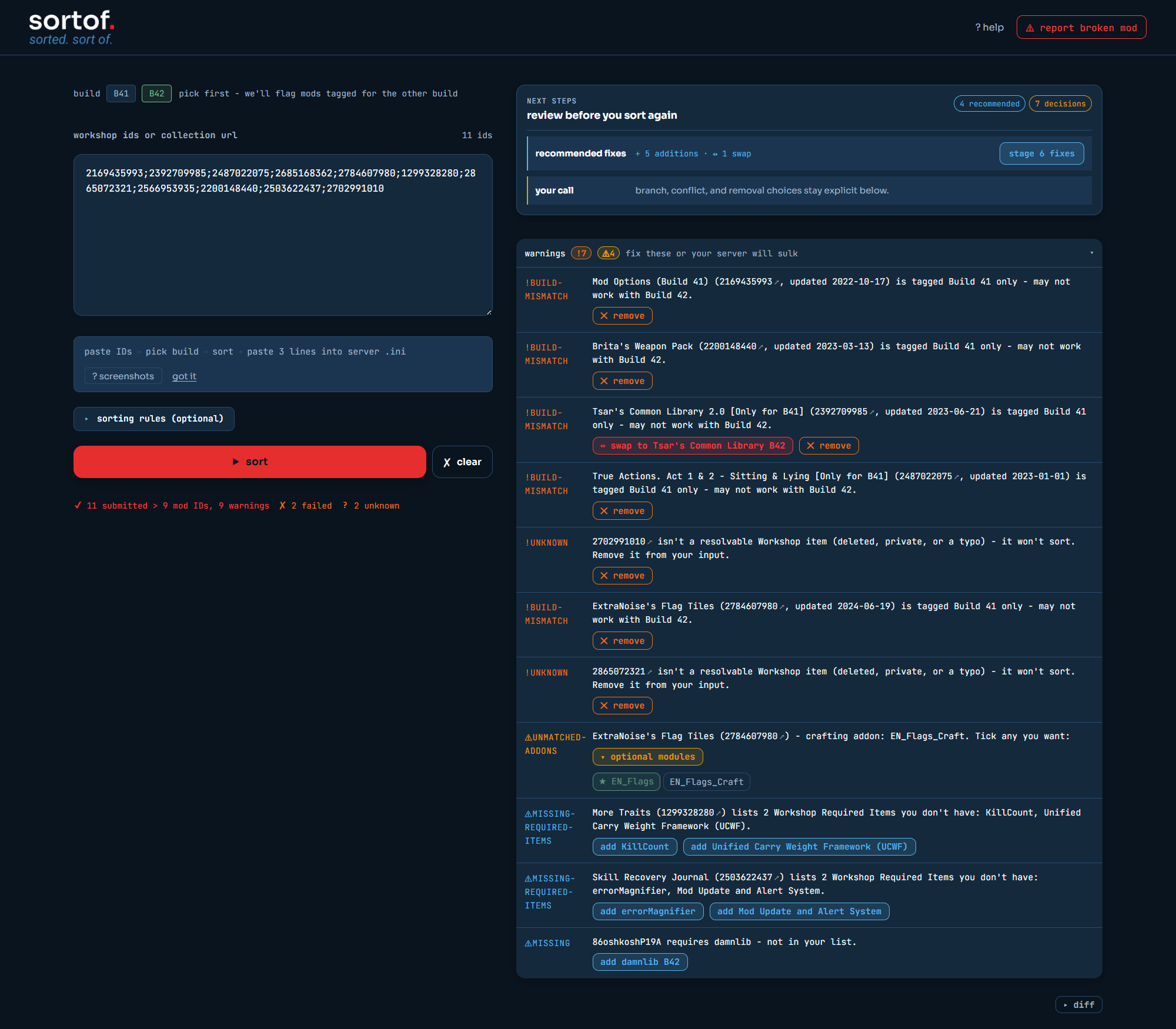
¶ recommended fixes - sortof already knows the fix, one click stages it
- missing. A mod in your list declares a dependency in its own mod.info, and that dependency isn't in your input. If sortof has the dependency's workshop ID cached, you get an add button; otherwise a Steam Workshop search link.
- missing-required-items. Same idea, different source: this is the "Required Items" list Steam shows on the mod's Workshop page itself, not something the mod author wrote into mod.info. Also comes with add/search actions.
- build-mismatch (with a swap option). A mod is tagged for the other PZ build, but sortof found a same-family workshop ID built for yours and can swap you onto it directly.
¶ your call - sortof picked a default, but the choice is genuinely yours
- build-mismatch (no swap available). A mod is tagged for the opposite build with no compatible sibling on file. It might still run, might not. Your call whether to keep it.
- conflict. Two or more mods in your input mark each other incompatible, in their own mod.info. If you'd only enabled one, sortof loads just that one. If you'd enabled more than one, sortof loads all of them and flags it rather than silently picking a winner.
- cycle. A load-order cycle, mod A wants to load before B, B wants to load before A, that sortof couldn't untangle on its own.
- duplicate-mod_id. The same internal mod ID is published by two different workshop IDs in your list, usually a B41 copy and a B42 copy of the same mod. Only one is actually loaded. Amber means you already have the winning workshop ID too, so the other one's just redundant. Red means you only have the losing one, so the mod won't load at all until you add the winner.
- unmatched-addons. A workshop ID ships optional addon patches for other mods you don't have installed. By default only the base is kept; tick any addons you actually want.
¶ could not complete - something failed outright
- item-failure. One specific workshop ID failed to process: banned, no mod.info found, or the parse itself failed. The exact reason is spelled out per item.
- rules-invalid. Your custom sorting-rules text couldn't be parsed, so it, along with any auto-applied rules for that run, was skipped entirely. Fix the syntax and re-sort.
¶ for reference - no action needed, sortof is just showing its work
- auto-picked-branch. A workshop ID ships multiple mutually-exclusive variants (think a radio-button choice baked into one mod), and sortof picked one automatically. Pick a different one if you want.
- collection-partial. Part of a pasted collection URL couldn't be fetched from Steam and got skipped.
- steam-degraded. Steam's API was rate-limited or unavailable when you sorted, so you're looking at the last cached result. Re-sort in a few minutes for anything new.
- rules-applied. Sortof recognized a known modpack or mod and auto-applied bundled sorting rules for it. Anything you typed into sorting rules yourself overrides these on conflicting keys.
¶ If Something Looks Off
1. Fewer mods came back than you pasted. Open diff, top right of the result panel. It lists exactly what got removed and why: banned, missing a mod.info, or dropped because a dependency it needed wasn't in your input.
2. The result changed between runs. If you've picked build overrides before, sortof remembers them in your browser and reapplies them on your next sort. Clear a specific override in the warnings panel if you don't want it anymore.
3. It's stuck on "queued." That means a mod in your input has never been pulled before and sortof is fetching it from Steam. Leave the tab open. Don't paste the three lines until the status strip says idle with a real mod count, not mid-queue.
Still stuck? Click ⚠ report broken mod in the header and include the workshop ID and which build you sorted under.