¶ Windrose: How to Upload your Save
So you'd like to continue your swashbuckling adventures on your indifferent server do you Captain? Well, no problem. Here in this guide we'll teach you how to conquer the storm on transferring your save from either your local game, or ye olde provider over to our servers faster than you can say 'Land ho.'
NOTE: When handling save data, it is best for the server to be offline during these transfers. Please stop your server, then wait a few minutes before proceeding with this guide.
¶ Method 1: Original RocksDB
1. Open your Server Files
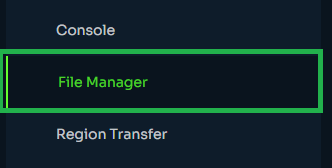
To begin, open the File Manager In your server panel. Simply locate and click the 'File Manager' tab from the left sidebar.
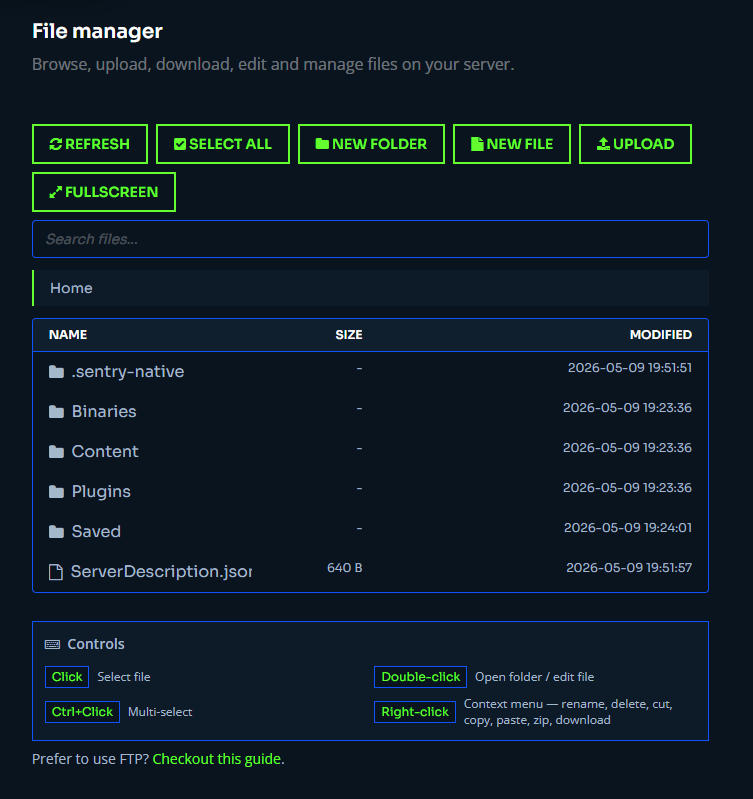
You will then be in the ‘Home’ directory of your Windrose Server.
2. Locate the Server Save Directory
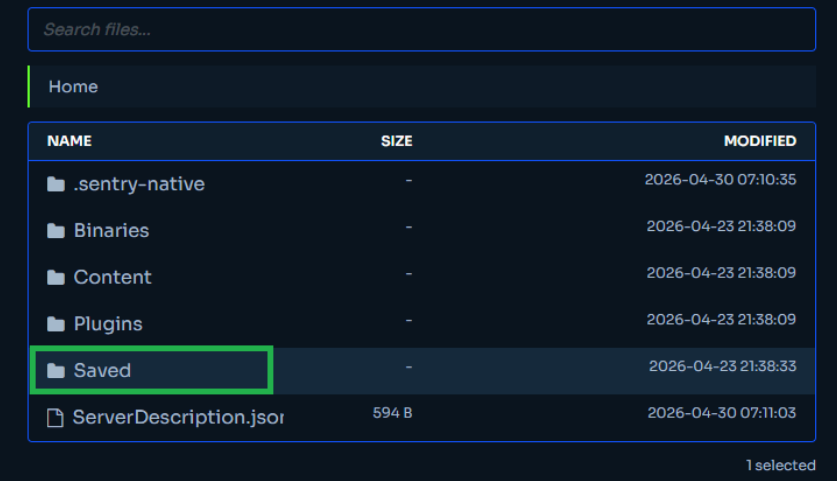
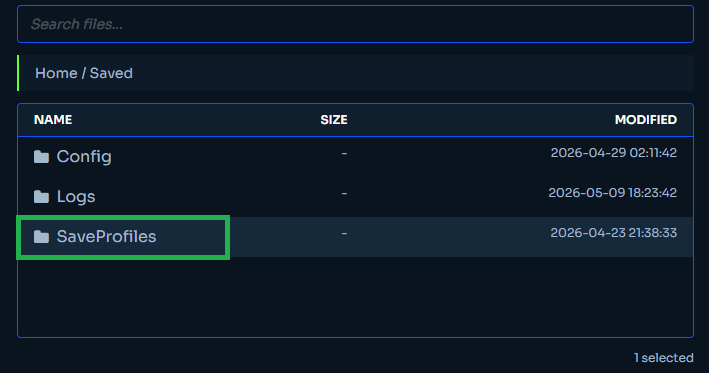
Navigate to Saved > SaveProfiles > Default.
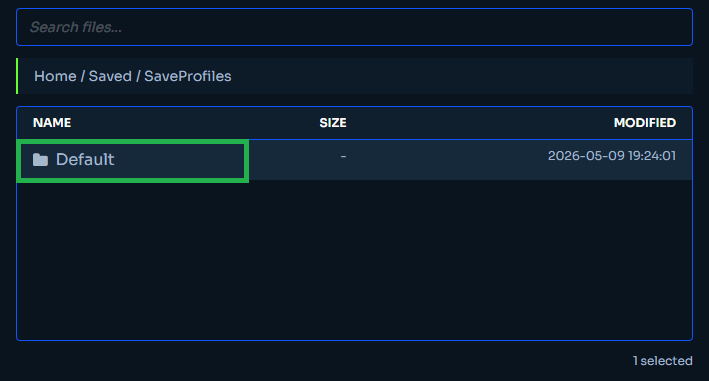
3. Create the ‘RocksDB’ Folders
Once within the ‘Default’ folder create the following folders one at a time, entering each before creating the next to create a nested directory:
- Click New Folder, name the new folder 'RocksDB', open it and continue
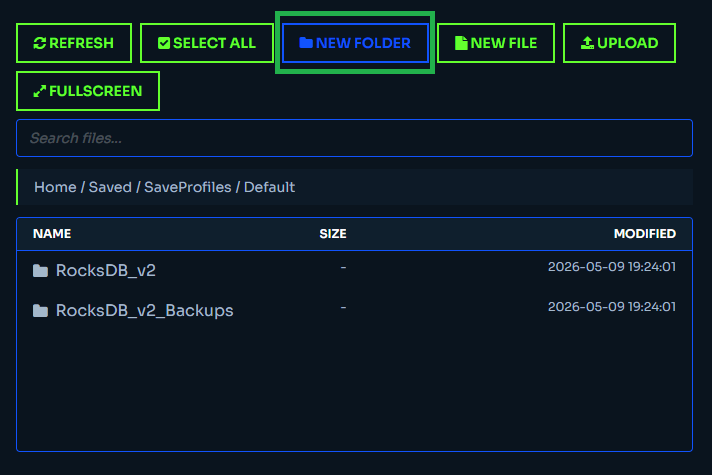
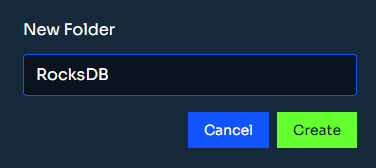
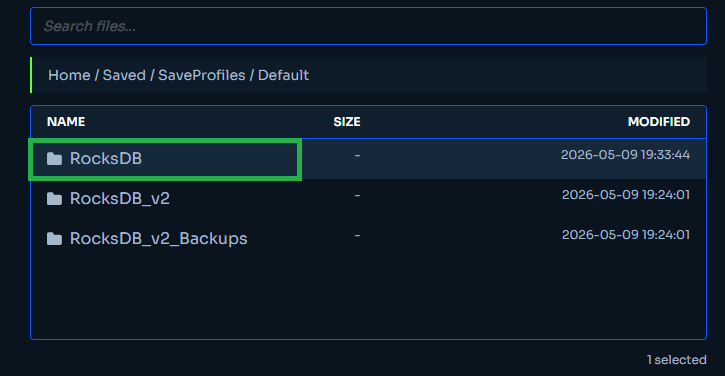
- Click New Folder, name the new folder '0.10.0', open it and continue
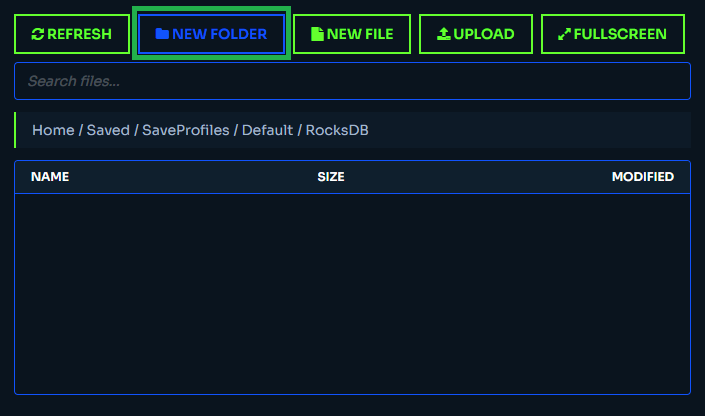
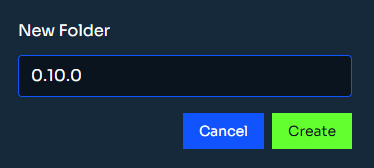
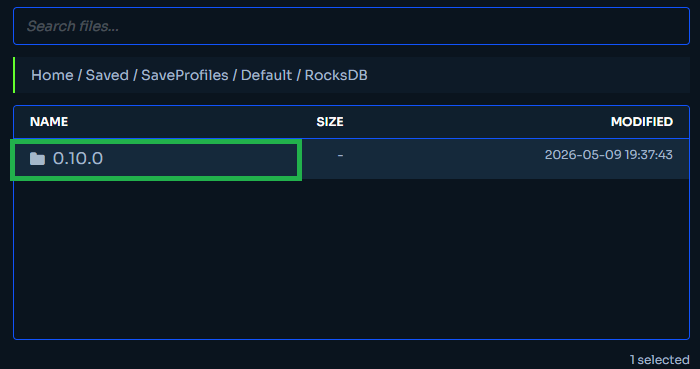
- Click New Folder, name the new folder 'Worlds', open it and continue
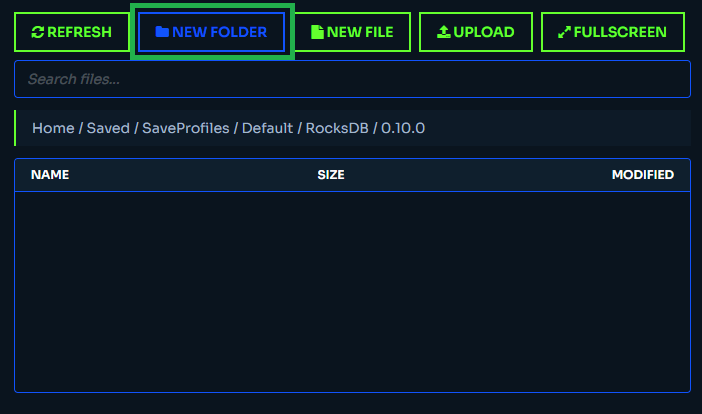
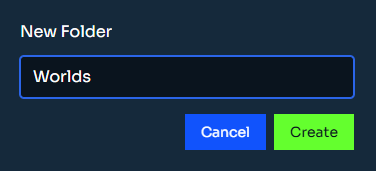
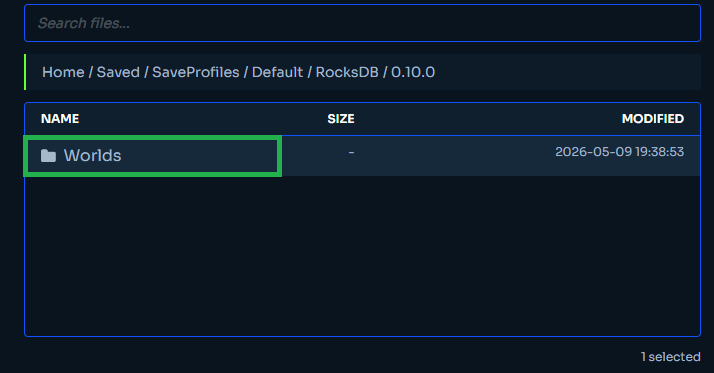
4. Upload your Save Folder
From inside the Worlds folder, click 'Upload', then select 'Upload Folder'.
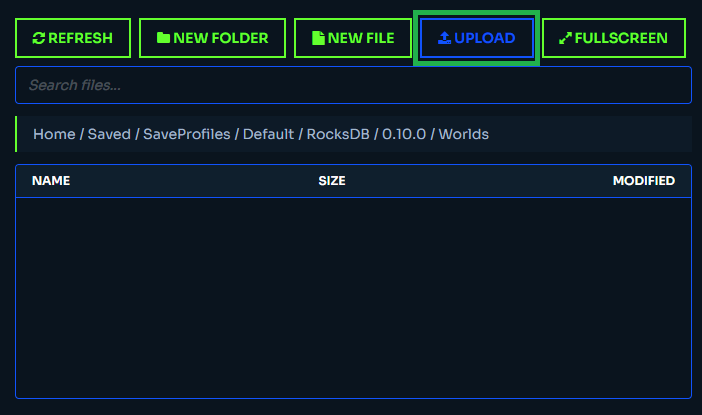
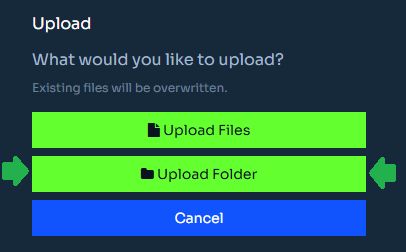
In the file browser that opens, click on the address bar and paste: %LOCALAPPDATA%\R5\Saved\SaveProfiles and hit enter.

Open the folder named after your Steam ID, then navigate through: Steam ID Folder >
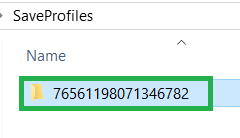
> RocksDB >
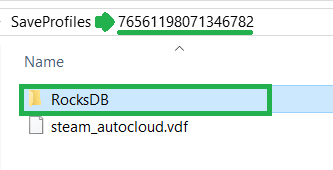
> 0.10.0 >
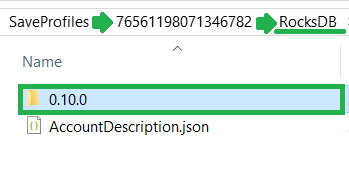
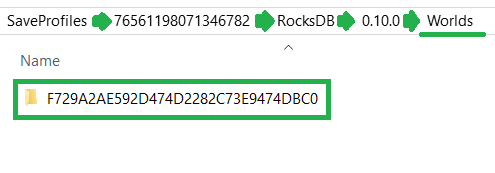
> Worlds .
Select your save folder (a long string of letters and numbers) and confirm when prompted.
5. Obtain your ‘WorldIslandId’
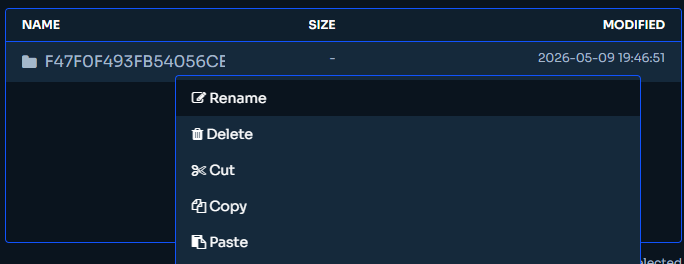
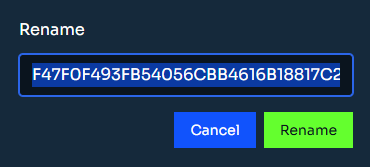
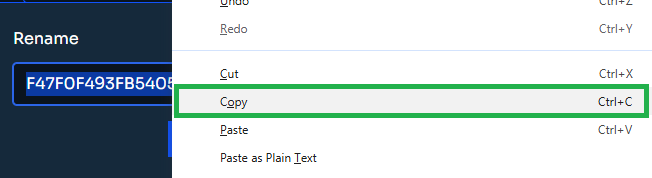
Once uploaded, right-click the folder and select ‘Rename’. This lets you see and copy the full folder name, which is also your 'WorldIslandId'. You'll need this for the next step.
6. Update your ServerDescription.json
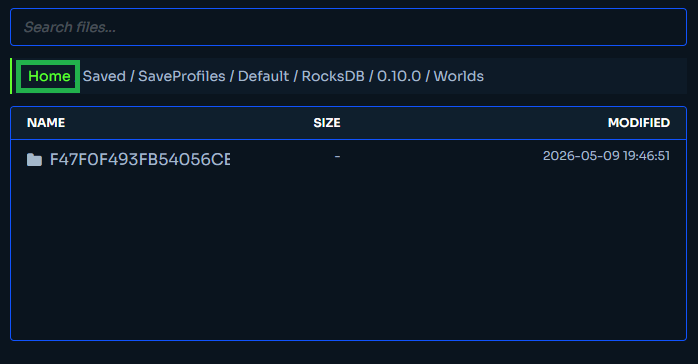
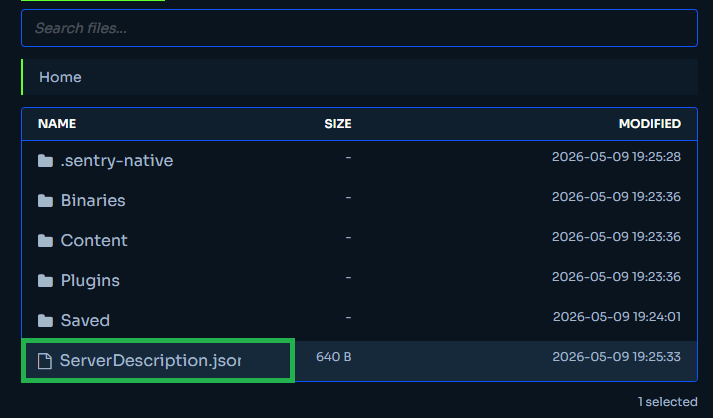
Click 'Home' in the address bar at the top to go back to the main directory.
Find and open your ServerDescription.json.
On line 11, locate the WorldIslandId field. Replace the value between the "'s with your save folder name you just copied.
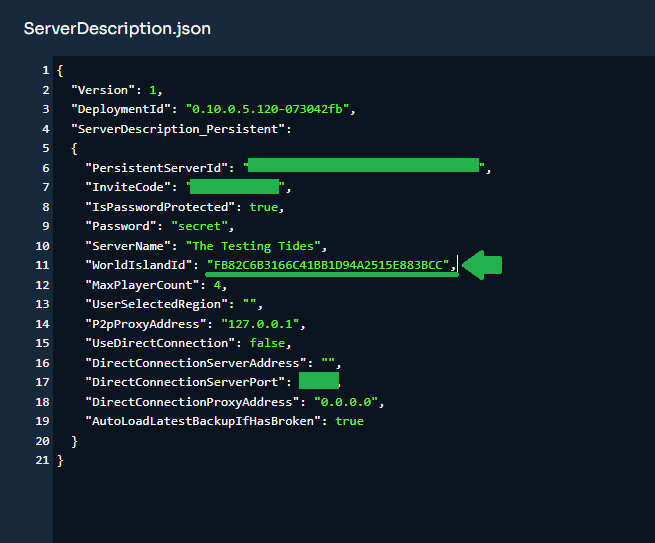
Click ‘Save’ at the bottom right of the window when finished.

7. Restart your Server
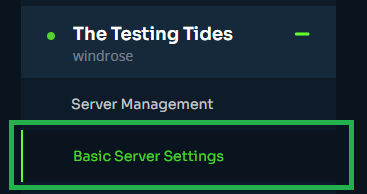
In the left sidebar, go to the 'Basic Server Settings' tab.
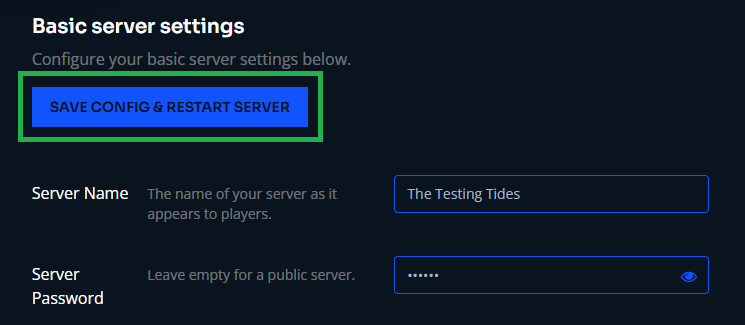
At the top of the page, click the Save Config & Restart Server button. Your server will restart and load your uploaded save.
Congrats, anchors away Captain.