¶ Palworld: How to Restore Lost Map Data
Missing your map data after doing the host fix? Here's how you can fix it.
Read this first: map data is not server data. Palworld stores map fog, discovered fast travel points, and your custom markers in
LocalData.sav, and that file lives on your PC. Not on the server. Your client reads it locally every time you log in, no matter what the server is doing.
Uploading LocalData.sav over our file manager will not fix a blank map. Nobody on the support team can restore your map for you, because we do not have your map. And every player carries their own copy, so restoring yours does nothing for the rest of your group. They each have to do this on their own machine.
¶ Restoring Map Data
1. Close Palworld completely. Not alt-tabbed. Closed. The game rewrites LocalData.sav when it exits and will happily overwrite whatever you just put there.
2. Open File Explorer, click the address bar, paste %localappdata%\Pal\Saved\SaveGames\, and press Enter.
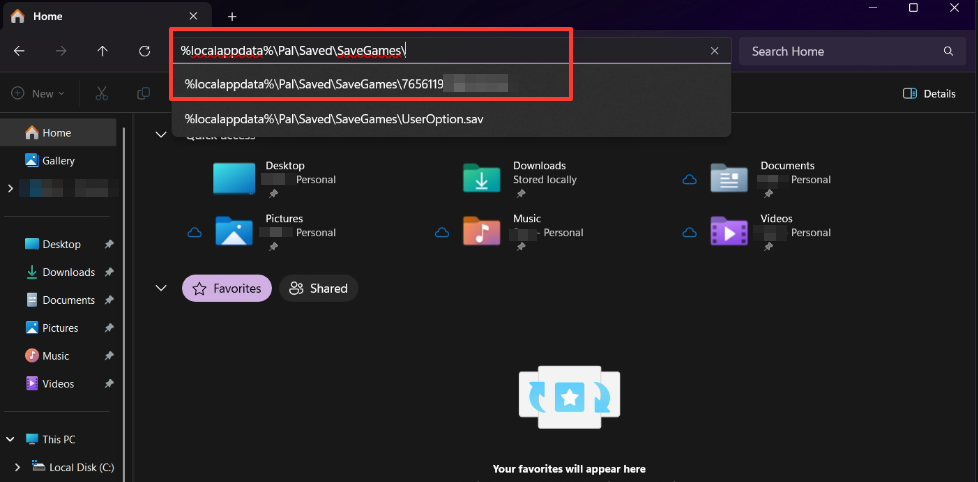
3. You will see a folder named with a long number. That is your SteamID64. Open it.
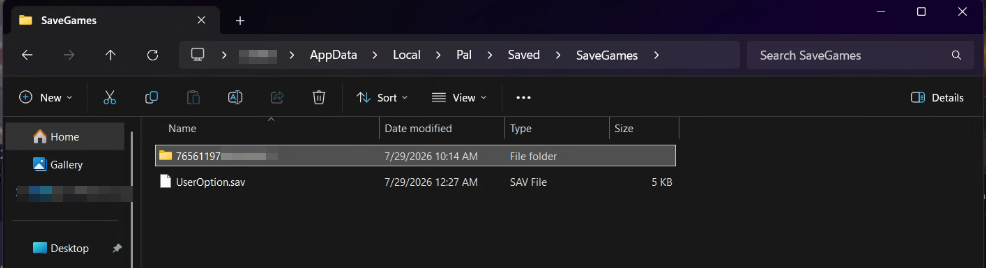
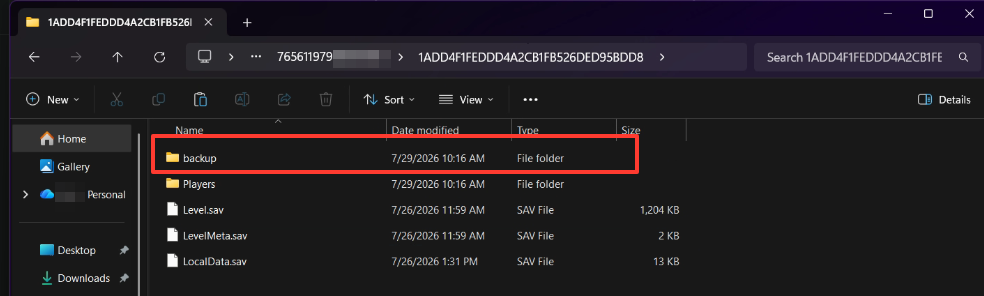
4. Inside is a folder with a long hex name. That is your world. Open it. You should see Level.sav, LevelMeta.sav, LocalData.sav, a Players folder, and a backup folder.
If more than one hex folder is sitting there, check the Date modified column. The one your client is using for the server is the one that updated the last time you logged in. It must match the one on the server.

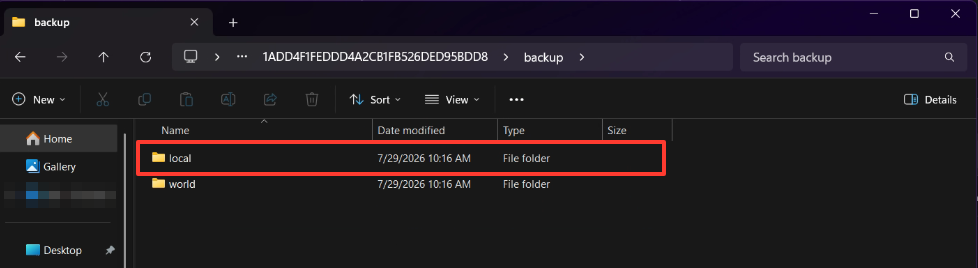
5. Open the backup folder. It holds local and world. local is the one with copies of LocalData.sav, which means your map, your fast travel unlocks, and your markers. That is what we are after. Leave world alone for now.
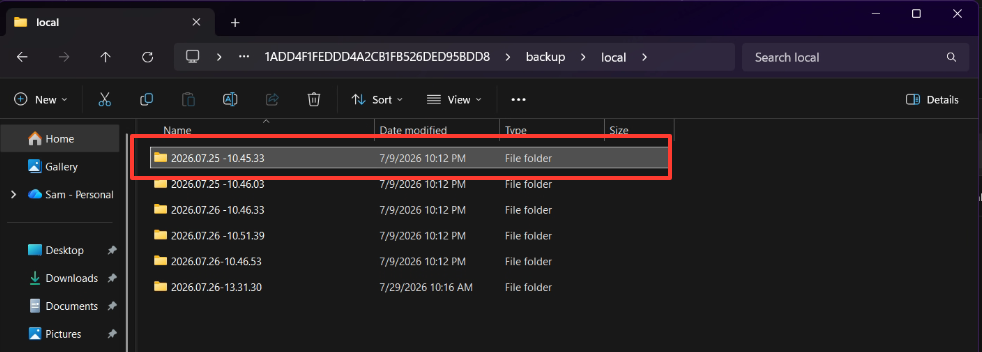
6. Open local. Every folder is a timestamp, formatted YYYY.MM.DD-HH.MM.SS. Pick one dated before the day you moved to the server.
Do not grab the newest one. The newest one is usually the blank map you are trying to get rid of.
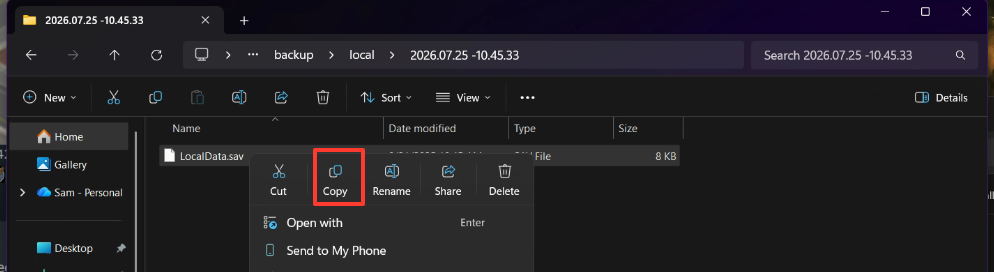
7. Inside that timestamped folder is a single LocalData.sav. Right-click it, then pick Copy.
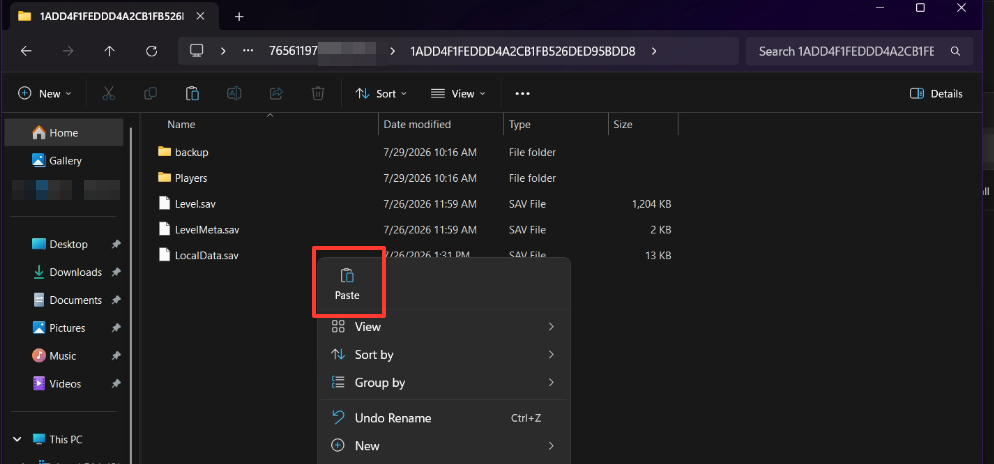
8. Go back up to the world folder from Step 4. Right-click empty space, pick Paste, and choose Replace the file in the destination when Windows asks.
9. Launch Palworld, connect to your server, and open the map. Everything you had explored should be back. No server restart needed, because none of this touched the server. Congrats, you're all done.

¶ If the Map Is Still Blank
1. Wrong backup. The most recent backup\local folder is often written after the map was already wiped. Go back a timestamp or two and try again.
2. Wrong world folder. If your client generated a new hex folder when it first connected to the server, your restored file went into the old one and the game never read it. Sort SaveGames\<SteamID>\ by Date modified, find the folder that updates when you log in, and put LocalData.sav there.
3. The game was open. Palworld rewrites LocalData.sav on exit. If it was running while you pasted, your restore is already gone. Close it, paste again.
4. Version mismatch. Confirm client and server are on the same build.
5. You uploaded it to the server. That does nothing. Do the restore locally.
Still stuck? Open a ticket in our Discord or email support@indifferentbroccoli.com with your server ID and the timestamp of the login where the map came up empty. Be aware we can look at the server side of this, and the map file is on your machine, so there is a limit to what we can check for you.