¶ Vintage Story: How to Upload a World
So you’ve survived wolves. Bears. Learned to preserve foods and survived winter’s bitter chill when the world was barren. Lived through the abominations of the night, coming to knock at your door from beyond…
Of course, just because you’re starting a server doesn’t mean you want to give up all that progress. And you don’t have to. Follow these steps and you can keep surviving (and thriving) with your friends, in style, on your brand-new server, right where you left off.
…If that’s what you want to do or whatever. :I
Below are two methods;
- Method 1 transfers only the world. It is simple and quick, and it moves your main save data over.
- Method 2 transfers your world, mods, configs, and settings, preserving everything 1:1. It is a bit more complex, but if you have a lot of mods, custom configurations, or additional settings, you may want to use this method to ensure your save has what it needs to load properly.
Use whichever method suits your needs.
Note: When handling save data, it is best for the server to be offline during these transfers. Please stop your server, then wait a few minutes before proceeding with this guide.
¶ Method 1: Simple (World Only)
1. First things first, we need to locate and obtain your Vintage Story world data. We’ll take a shortcut to get there. To begin, launch Vintage Story.
2. From the main menu, select Single Player.
3. At the bottom-left of the Your Worlds window, click the Open Saves Folder button.
4. You will now be in VintagestoryData\Saves.
5. You should see your worlds with a .vcdbs extension. Locate the one you want and keep that folder open.
6. Next, open your FTP client of choice. These files can get large, so FTP speeds up the process. We have a guide here that can help: How to Use an FTP Client.
7. Return to your indifferent broccoli Vintage Story dashboard. Open the Server Management tab and find your FTP IP, FTP Port, FTP Username, and FTP Password. Enter them into your FTP client and connect to your Indifferent Broccoli Vintage Story server.

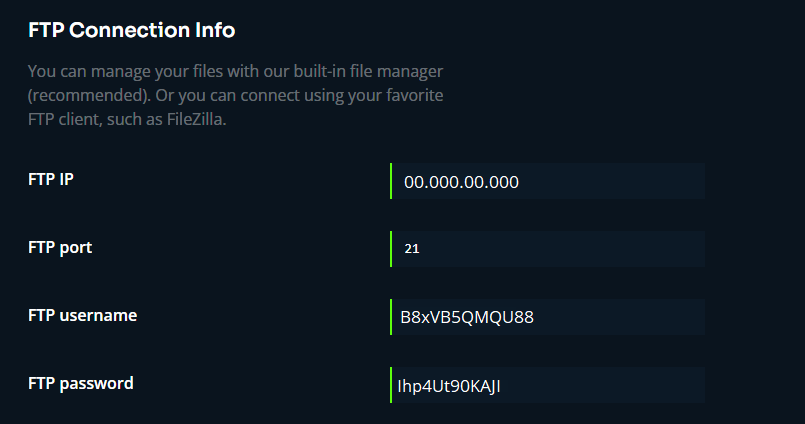
9. Select the server-data folder via your FTP client.
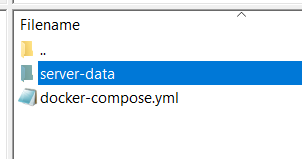
10. Open the Saves folder via your FTP client.
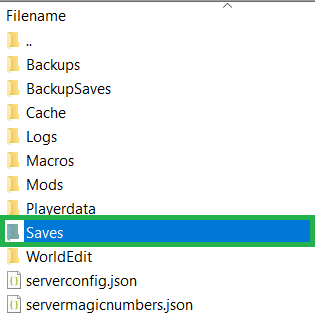
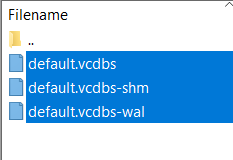
11. Delete the default world files from the server via your FTP client.
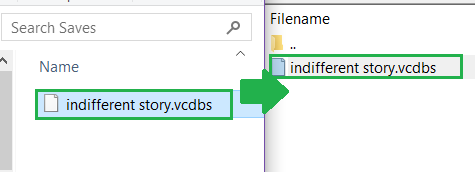
12. Drag your chosen .vcdbs file from your Saves folder into your server’s Saves folder using your FTP client.
13. Go back to your indifferent broccoli dashboard, adjust your server settings, save the config, restart the server, and enjoy your server with your uploaded save. Congrats, you’re all done.
¶ Method 2: Complex (1:1 All Save Data)
1. First and foremost, we need to locate and obtain your Vintage Story save data. We’ll take a shortcut to get there. To start, launch Vintage Story.
2. From the main menu, select Single Player.
3. At the bottom-left of the Your Worlds window, click the Open Saves Folder button.
4. You will now be in VintagestoryData\Saves.
5. In File Explorer, click VintagestoryData (the parent folder).
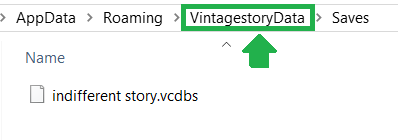
6. The VintagestoryData folder is what you need. Keep this open, and make note of the circled folders. (The server config is also noted here.)
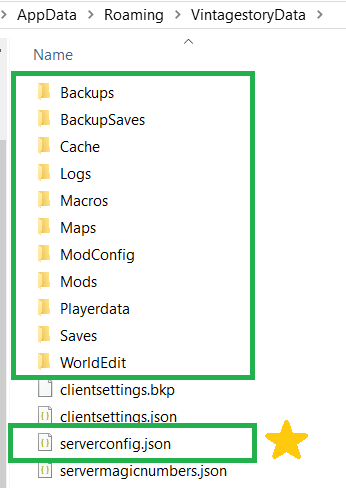
7. Next, open your FTP client of choice. These files can get large, so FTP speeds up the process. We have a guide here that can help: How to Use an FTP Client.
8. Return to your indifferent broccoli Vintage Story dashboard. Open the Server Management tab and find your FTP IP, FTP Port, FTP Username, and FTP Password. Enter them into your FTP program and connect to your Indifferent Broccoli Vintage Story server.
9. Select the server-data folder in your FTP.
10. Delete all highlighted folders from the FTP. Do not delete any other files.
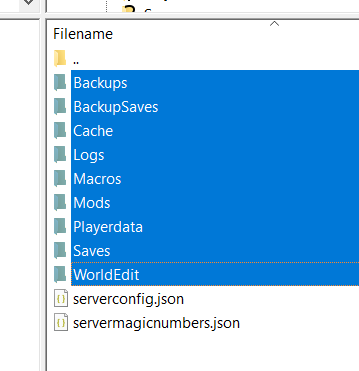
11. Drag in your local folders to replace them. Do not upload the server config, but keep it handy.
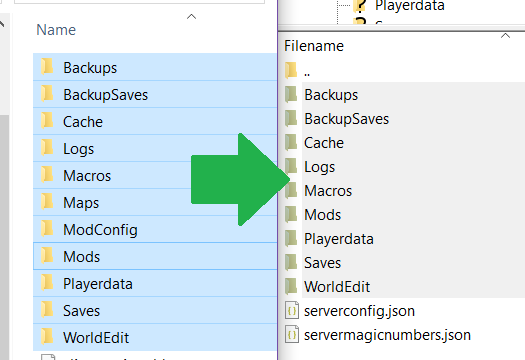
12. Open the serverconfig file using View/Edit in your FTP client. Open your local one as well, and find the WorldConfig section.
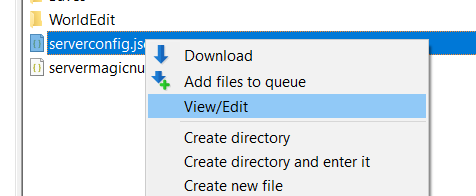
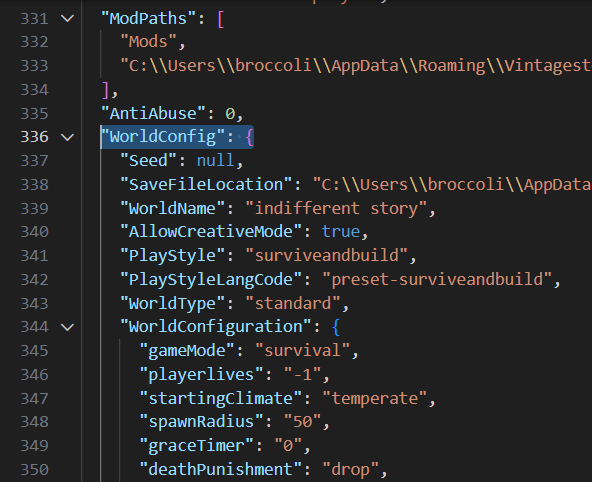
13. Copy only the WorldConfig section, and update SaveFileLocation to match the server version’s path.
14. Adjust any other settings via the dashboard to match your original save file settings.
15. Save configs and restart. Congrats, you're done.